
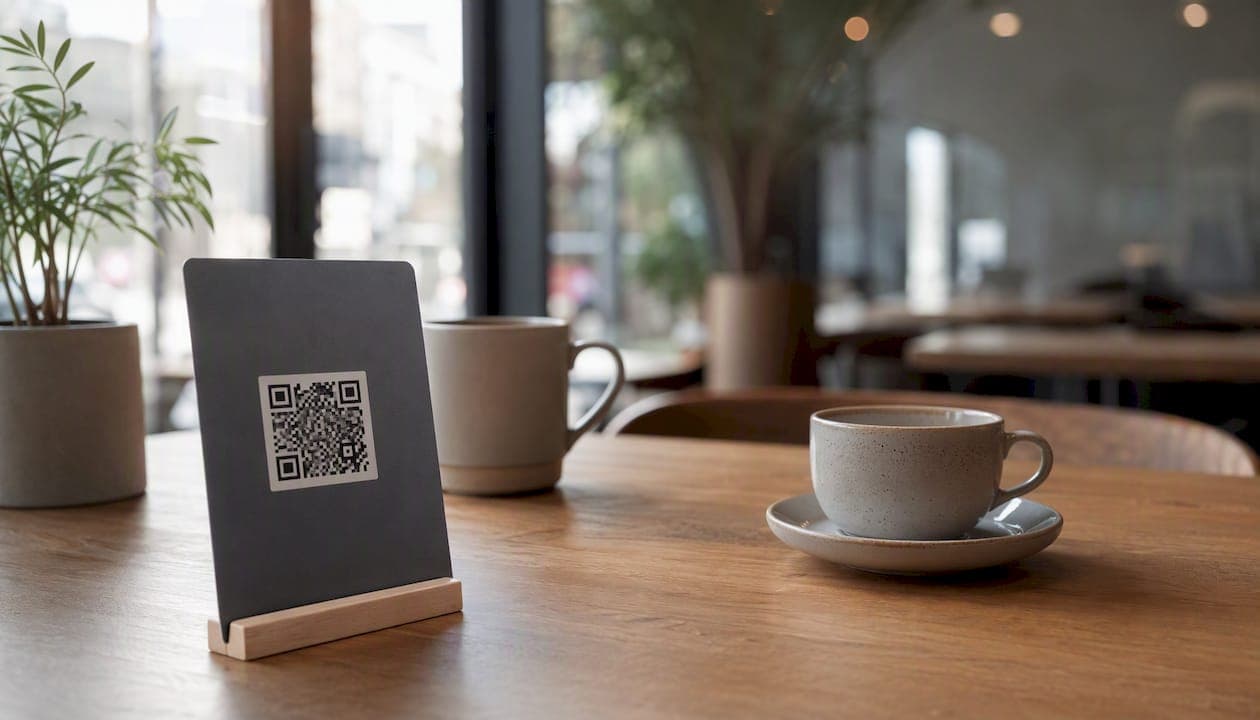
QR table ordering is a self-serve, scan-to-order system that maps a unique QR code to each table or ordering station, routes orders directly to your POS and kitchen, and captures guest contact data at checkout. If you're ready to deploy it, the fastest path is to map your floor plan, configure ordering stations in your dashboard, and run a one-week pilot on a slow shift to validate routing and staff workflows before going venue-wide.
Here's what you get out of the gate:
- A unique QR code per table that opens a mobile menu page without requiring any app download
- Orders routed automatically to your POS, kitchen display screen (KDS), or thermal printer
- Guest name, email, and phone captured at checkout for marketing follow-up
- Payment processed at the table via card, Apple Pay, or Google Pay
- A 25% increase in table turnover, based on Qrordering's operator performance data.
The National Restaurant Association consistently flags labor costs and staffing shortages as the top operational pressures on U.S. restaurants. QR table ordering addresses both directly.
Table of Contents
- How does QR table ordering actually work?
- What are the real operational benefits?
- How do you set up QR table ordering step by step?
- What hardware and connectivity do you actually need?
- How should you design your mobile menu for better results?
- How do payments, tipping, and receipts work at the table?
- How should kitchen tickets be set up to avoid errors?
- What does QR table ordering cost, and what's the ROI?
- Pre-launch checklist and timeline
- Common pitfalls and how to fix them fast
- What results do operators see with Qrordering?
- Key Takeaways
- What operators usually get wrong about rollout
- Qrordering makes QR table ordering straightforward to deploy
- Useful sources for further reading
How does QR table ordering actually work?
The customer flow is short: a guest scans the QR code on their table, a mobile menu page loads in their browser, they select items and modifiers, pay or open a tab, and receive a digital confirmation. No app, no server needed for that exchange.
The technical side runs in parallel:
- The QR code encodes a unique URL tied to a specific table or ordering station
- That URL opens a web-based ordering page hosted on your platform
- The guest's order is transmitted to your POS, KDS, or receipt printer in real time
- A kitchen ticket prints or displays with the table number, item list, modifiers, and any guest notes
- Guest contact data (name, email, phone) is captured at checkout and stored for CRM and marketing use
ChowNow's QR ordering guide describes this flow clearly: the system routes orders to the kitchen without an app and captures guest data automatically at the point of payment. That data feeds directly into repeat-visit campaigns, loyalty programs, and post-visit review requests.
One configuration choice matters early: unique codes per table versus a single shared code with manual location entry. Square's QR ordering documentation recommends unique per-table codes for small and medium venues because they reduce ordering friction and eliminate routing errors. A single shared code works for large events or temporary setups where table-level routing isn't critical.
What are the real operational benefits?
The labor math is the most immediate argument. When guests order and pay from their phones, servers shift from order-taking to food running and guest support. That frees up labor hours per shift without reducing service quality.
Operational gains:
- Fewer order-taking trips per table, which cuts server steps and speeds up ticket submission
- Faster table turns because payment happens at the guest's pace, not the server's availability
- Cleaner kitchen tickets with explicit modifiers and notes, which cuts re-fires and waste
- Lower error rates from typed orders versus verbal relay
Guest experience improvements:
- Photos and descriptions on every item build ordering confidence and reduce "what does that come with?" questions
- Contactless payment via Apple Pay or Google Pay satisfies guests who prefer not to hand over a card
- Guests can add items mid-meal without flagging down a server
Marketing and revenue lift:
- Automatic guest-data capture at checkout builds your email and SMS list with zero manual effort
- Upsell prompts and suggested pairings placed on the menu page increase average order value
- Order history per guest enables targeted promotions for repeat visits
Qrordering's operator data shows a reduction of staff members needed per service, a 25% increase in table turnover, and a measurable drop in order errors. For a busy dinner service, faster turns mean more covers per night on the same floor plan.
How do you set up QR table ordering step by step?
Pre-setup decisions
- Audit your POS and printers — Confirm your POS accepts incoming orders from a third-party system and that your kitchen printer or KDS can receive tickets via the platform's integration. Square's setup guide walks through ordering-station configuration and downloadable QR code assets in detail.
What hardware and connectivity do you actually need?
Connectivity
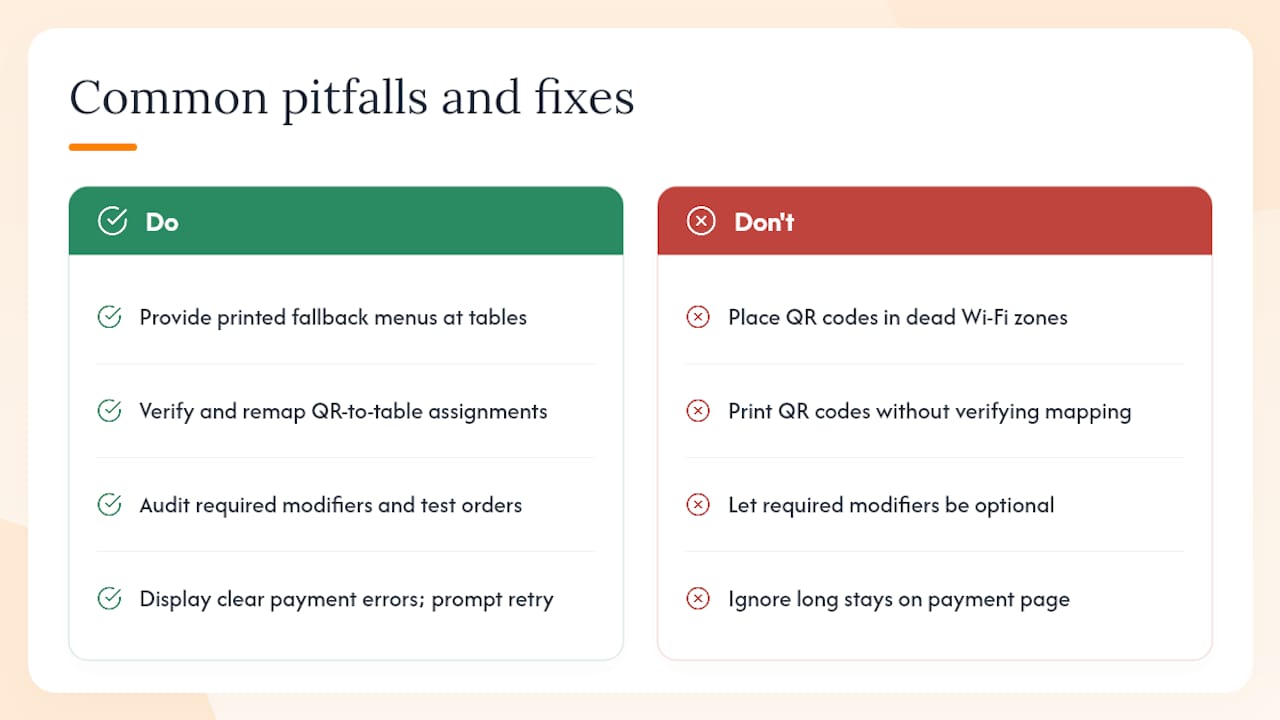
Reliable guest Wi-Fi is the single biggest technical dependency. Most mobile ordering pages are lightweight, but payment processing requires a stable connection. If your venue has dead zones, map them before placing QR codes in those spots. Cellular fallback works for most guests on modern data plans, but you can't rely on it as your primary path.
Configure your platform to display a clear message when ordering is temporarily unavailable, so guests aren't left staring at a loading screen. Square's support documentation notes that ordering hours and off-hours messaging are configurable settings operators should test before launch.
Security and compliance
Card payments processed through a QR ordering platform must comply with PCI DSS (Payment Card Industry Data Security Standard). Choose a platform that handles PCI DSS compliance on your behalf through tokenization and encrypted payment flows, so you're not storing raw card data on your own systems.
On accessibility: the Americans with Disabilities Act (ADA) requires that digital menus be accessible to guests with disabilities. Use sufficient color contrast, readable font sizes, and alt text on images. This is a legal requirement, not a preference.
Pro Tip: Place a printed fallback menu at every table alongside the QR code. It covers guests who can't or won't use a smartphone and keeps your ADA posture clean.
How should you design your mobile menu for better results?
A mobile menu that converts well has three qualities: it's fast to scan, hard to misread, and easy to modify. Most operators underinvest in menu configuration and then wonder why error rates don't drop.
Content rules:
- Item names should be plain and specific. "Grilled Salmon with Lemon Butter" beats "Chef's Catch."
- Descriptions stay under 20 words. Guests are reading on a 6-inch screen.
- Flag allergens explicitly on each item, not in a footer disclaimer.
- Required modifiers (protein temperature, sauce choice) must be enforced in the ordering flow so guests can't submit an incomplete order.
Photos and upsells:
- Add a photo to every item you can. ChowNow's research confirms that mobile menus with photos and clear modifier logic increase average order value and reduce incorrect choices.
- Place high-margin items at the top of each category. Mobile users rarely scroll to the bottom.
- Use suggested pairings ("Add a side for $3") as inline prompts rather than a separate upsell page.
Usability checks:
- Set sensible default modifiers so guests don't have to make every choice from scratch.
- Test the cart behavior: can a guest remove an item after adding it? Can they adjust quantity?
- Run through five complete test orders on both iOS and Android before launch.
Pro Tip: Build a "most popular" category at the top of your menu. It shortens decision time for first-time guests and tends to push your highest-margin items.
How do payments, tipping, and receipts work at the table?
Guests pay directly from the ordering page using a saved card, Apple Pay, or Google Pay. The payment is processed before or at the time of order submission, depending on your configuration.
Payment options and flows:
- Pay-upfront works well for counter-service and fast-casual formats where the check is closed at order time.
- Open-tab mode lets guests order multiple rounds and pay at the end of their visit, which suits full-service restaurants.
- Card capture without immediate charge holds a card on file and charges at checkout, useful for bar tabs.
Tipping:
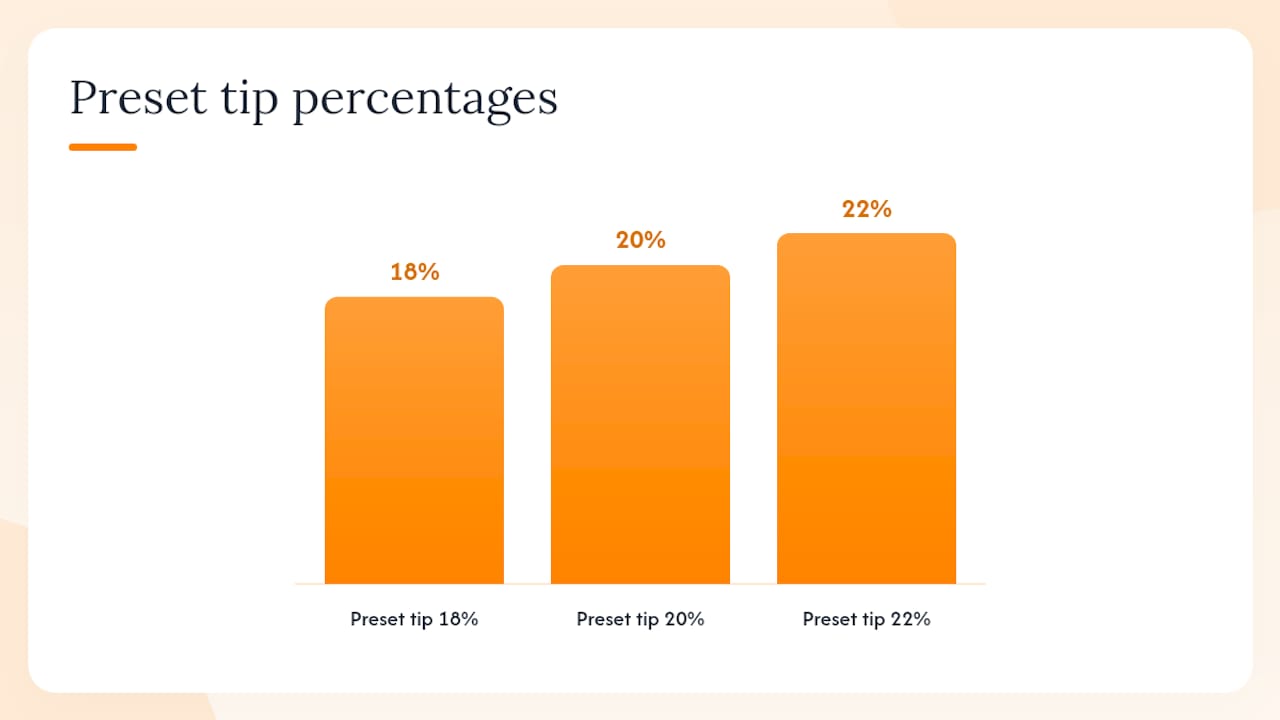
Tipping prompts appear at checkout with preset percentage options (typically 18%, 20%, 22%) plus a custom amount field. Placement matters: show the tip prompt after the order summary but before the payment confirmation screen. Guests who see the total first tip more consistently.
Split checks:
Most platforms handle split-by-item or split-evenly at the guest level. For server-assisted splits, the POS should reflect the original order so staff can apply adjustments without re-entering items.
Receipts and refunds:
Digital receipts go to the email or phone number captured at checkout. For refunds, the standard workflow is to process the reversal through your POS or payment dashboard and notify the guest via the receipt email. Train at least one manager per shift on the refund flow before launch.
How should kitchen tickets be set up to avoid errors?
Every ticket that prints or displays on your KDS should carry four pieces of information: table number, item list with modifiers, guest notes, and the order timestamp. Missing any of these creates a guessing game during a busy service.
Routing rules:
- Use a single consolidated ticket per table for most full-service setups. Split tickets by station (grill, fryer, expo) only if your kitchen is large enough to warrant it.
- If a guest adds items mid-meal, the platform should send a supplemental ticket clearly marked as an add-on to the original order, not a new order from scratch.
- KDS is preferable for high-volume kitchens because bump-bar acknowledgment creates a clear record of what's been seen. Printers work fine for lower-volume operations.
Staff monitoring:
Assign one person per shift to monitor incoming orders during the first two weeks. This doesn't have to be a dedicated role; a server or expo can check the dashboard every few minutes. The goal is catching routing errors before they become guest complaints.
Toast's FAQ on Mobile Order & Pay covers how server-initiated POS tabs and guest-initiated orders coexist on the same table, which is the most common source of duplicate tickets during early rollout.
What does QR table ordering cost, and what's the ROI?
Typical cost lines
| Cost item | Typical range |
|---|---|
| QR code materials (laminated cards) | $20–$60 one-time |
Sample 12-month ROI illustration
Assume a restaurant running multiple dinner shifts per day. Before QR ordering, servers handle order-taking at a combined labor cost. After rollout, one of those roles shifts to a part-time runner position, saving labor costs.
| Line item | Monthly cost |
|---|---|
| SaaS subscription | Typical monthly subscription |
| Payment processing | Estimated monthly fee based on volume |
| Total new cost | Sum of subscription and processing costs |
| Labor savings | Estimated labor savings |
| Net monthly gain | Labor savings minus new costs |
At that rate, the one-time hardware and setup costs pay back quickly. Over 12 months, the net gain is significant from labor savings alone, before accounting for higher table turnover and increased average order value from upsells.
Pre-launch checklist and timeline
Week 1: Setup and testing
- Import your full menu with photos, descriptions, allergens, and modifiers
- Map every QR code to its table or ordering station
- Configure ordering hours, tipping defaults, and off-hours messaging
- Connect your POS and kitchen printer or KDS
- Run 10 end-to-end test orders across multiple devices (iOS and Android)
- Confirm every ticket prints with the correct table number and modifiers
Week 2: Staff training and soft launch
- Brief all front-of-house staff on the guest introduction script: "You can order and pay from your phone using the code on your table."
- Assign one shift champion per service to monitor incoming orders and handle exceptions
- Run a soft launch on your slowest shift (typically a Tuesday or Wednesday lunch)
- Collect staff and guest feedback after each service
- Fix any menu errors, routing issues, or payment failures before expanding
Week 3: Full rollout and measurement
- Expand to all shifts and tables
- Track orders placed via QR versus server-taken orders
- Measure table-turn time before and after
- Review order error rates and kitchen re-fires
- Adjust menu, modifiers, or tipping prompts based on real usage data
Common pitfalls and how to fix them fast
Network failures:
If guest Wi-Fi drops during a service, guests on cellular data can usually still load the menu and pay. Keep a printed fallback menu at every table. If your venue has persistent dead zones, move QR codes to spots with confirmed signal or add a Wi-Fi extender before launch.
Wrong table mapping:
The most common early mistake is a QR code that routes to the wrong table number. Signs: kitchen tickets arrive with mismatched table identifiers, or guests report their order went to the wrong table. Fix: pull up your ordering-station map in the dashboard, verify each code's assigned table, reprint and replace any mismatched codes.
Missing or broken modifiers:
If a required modifier isn't enforced in the ordering flow, guests submit incomplete orders. The kitchen then has to guess or call back to the table. Audit every item with a required modifier before launch and test each one from a guest device.
Payment failures:
Most payment failures come from expired cards, insufficient funds, or a brief connectivity drop. The platform should display a clear error message and prompt the guest to retry or use a different payment method. Train staff to check in with tables that have been on the ordering page for more than five minutes without submitting.
Staff resistance:
Some servers worry QR ordering cuts their tips. Address this directly: show them the tipping prompt data, explain that their role shifts to higher-value guest interaction, and make the shift champion role a visible, respected position.
What results do operators see with Qrordering?
Qrordering operators report consistent outcomes after full deployment: a reduction in staff members needed per service, a 25% increase in table turnover, and a measurable drop in order errors.
The table-turn figure is the one that compounds. Improved turnover on a 60-seat restaurant running two dinner services means significantly more covers per week on the same floor plan, with no additional labor.
Key Takeaways
QR table ordering pays back fastest when you map unique codes per table, route orders directly to your kitchen, and train one shift champion to drive staff adoption from day one.
| Point | Details |
|---|---|
| Map your floor plan first | Assign a unique QR code to every table before configuring any other setting. |
| Test POS routing before launch | Run 10 end-to-end test orders and confirm every ticket prints with the correct table number and modifiers. |
| Pilot on a slow shift | Start on your lowest-volume service to catch routing and menu errors without guest impact. |
| Train one champion per shift | Staff adoption is social; one confident advocate per service drives guest uptake faster than any signage. |
| Qrordering for full deployment | Qrordering delivers no-app ordering, POS/printer routing, analytics, and multi-outlet support with a free trial to start. |
What operators usually get wrong about rollout
The technology is rarely the hard part. Most operators who struggle with QR table ordering rollout hit the same wall: they configure the system correctly and then hand it to staff without a clear script or a designated owner per shift.
Guests take their cue from servers. If a server introduces the QR option confidently during the greeting, scan rates go up. If servers ignore it or seem uncertain, guests default to asking for a paper menu. That's not a tech problem. It's a social one.
The other thing operators underestimate is the feedback loop. The first two weeks of live data will tell you more about your menu's weaknesses than any internal review. Watch which items generate the most modifier errors, which categories guests skip, and where the cart abandonment happens. That data is sitting in your dashboard; most operators don't look at it until something goes wrong.
Measure three things during your pilot: orders placed via QR as a percentage of total orders, average table-turn time, and kitchen re-fires per service. If all three move in the right direction by week three, you've validated the system. If one doesn't, you know exactly where to dig.
Qrordering makes QR table ordering straightforward to deploy
Two staff members freed up per service, a 25% faster table turn, and a guest-data list that grows automatically with every order. That's the practical case for QR table ordering, and it's what Qrordering is built to deliver for U.S. restaurants, cafés, and food and beverage operations.
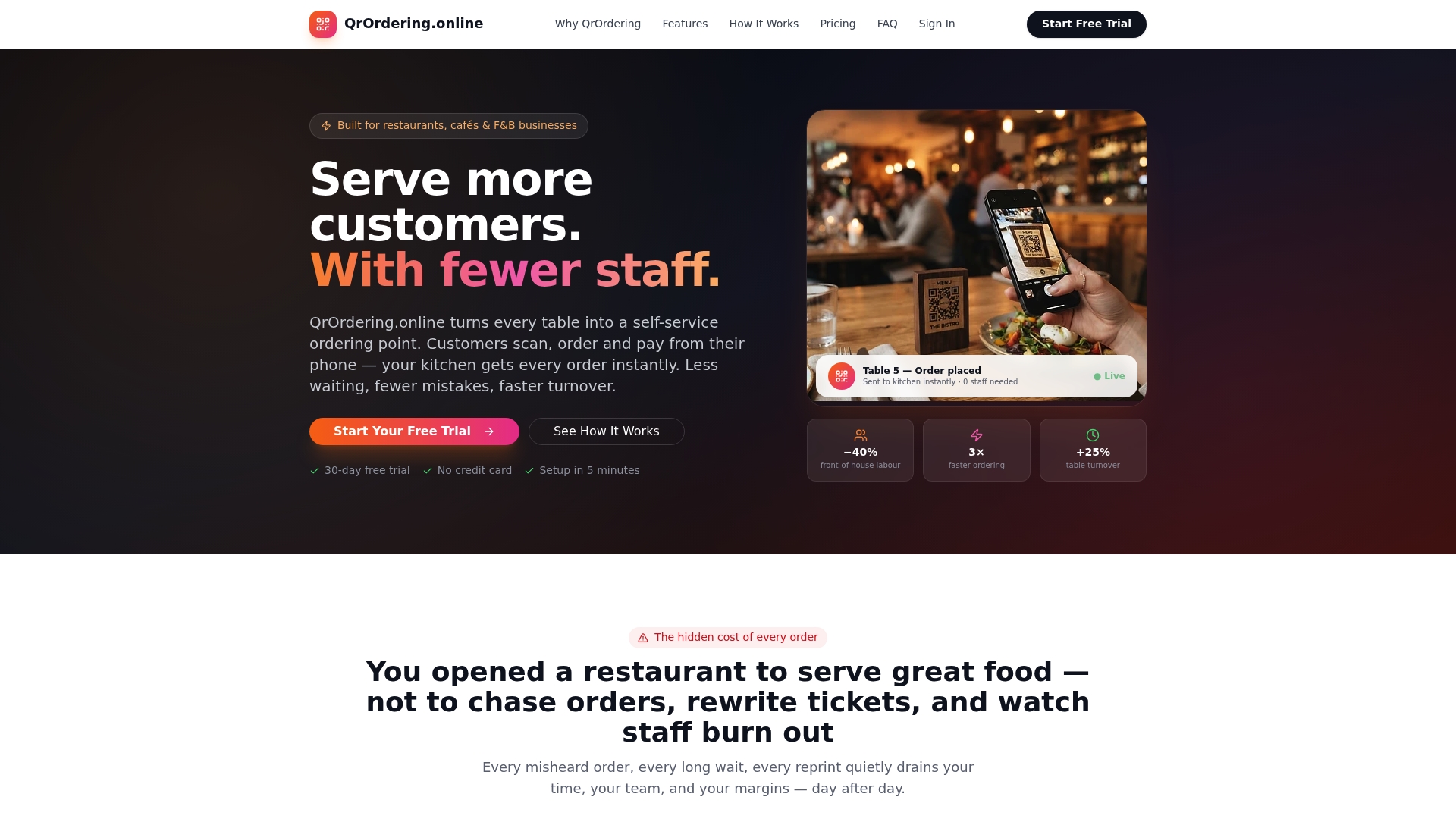
Qrordering covers the full stack: no-app ordering, table-mapped QR codes, POS and kitchen printer routing, digital and thermal receipts, real-time floor plan management, and multi-outlet analytics. There's no expensive hardware to buy and no long onboarding contract to sign. The free trial gives you enough time to configure your menu, map your tables, and run a live pilot shift before committing to a paid plan. To get started, visit QrOrdering.online, set up your ordering page, and run your first test order today.
Useful sources for further reading
- QR Code Ordering for Restaurants
- Toast Mobile Order & Pay® FAQ
- QR code ordering for restaurants | Square
- Set up and manage QR code ordering for your website | Square Support Center - United States
- QrOrdering.Online - The simplest QR code ordering system for modern restaurants.
- restaurant.org